
Visual work management your team will actually use
Every task is a card you drag across columns. Open Pulse and a My Work panel shows what is overdue and due soon; log time with one tap; and turn the board into a chart, a PDF report or an Excel export in one click.
Replaced Trello at DDRT. Desktop and mobile app.
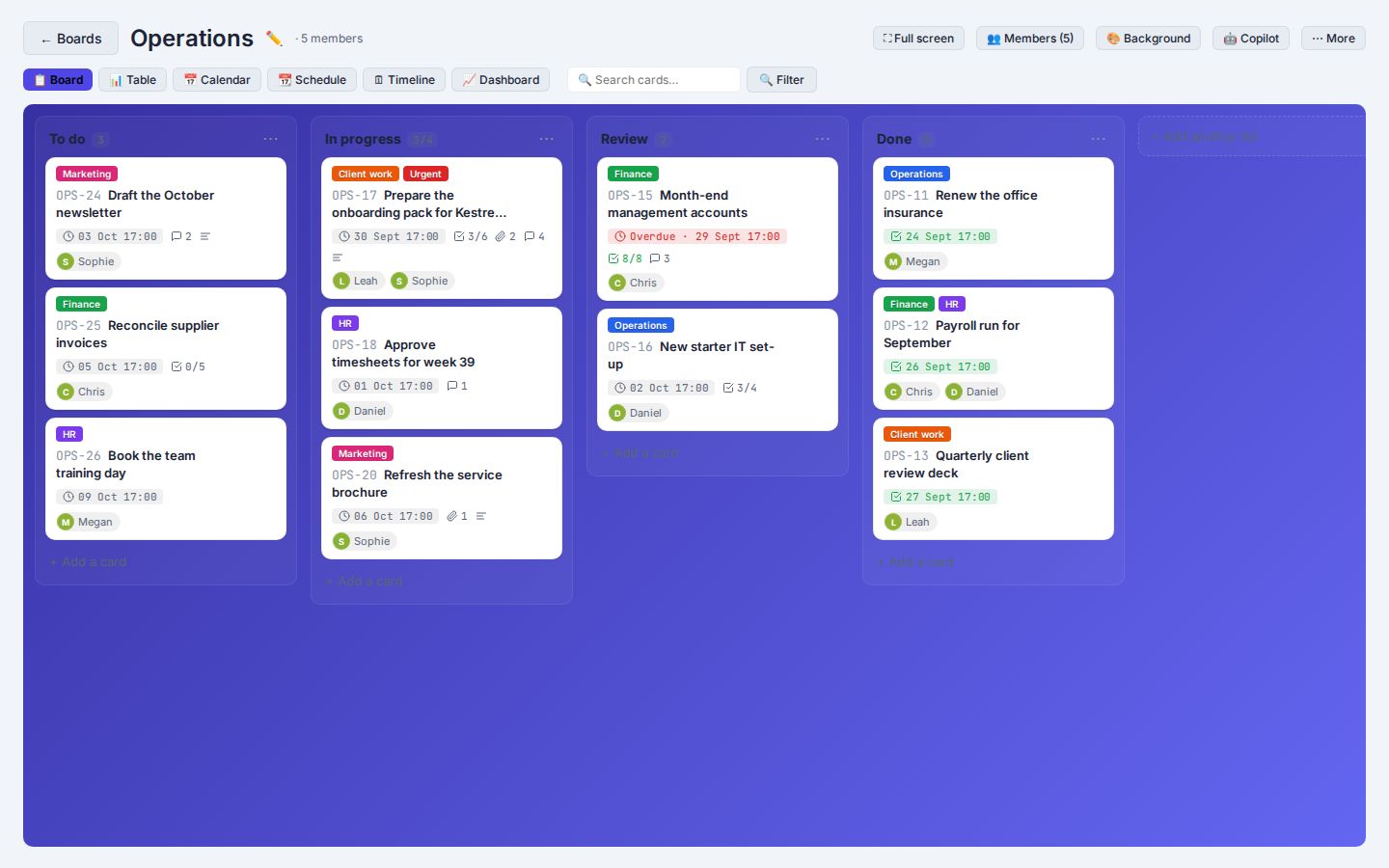
Illustration of a Pulse board with example cards.
Teams outgrowing Trello
Familiar cards and columns, with time tracking, staff records and permissions built in rather than bolted on.
Growing teams and departments
A workspace for each team or department, with membership control over who sees what, under one login.
Firms working with Task Tango
Delegate a task to your Task Tango team on the same board you use for your own work, and watch it move.
Five views of the same work
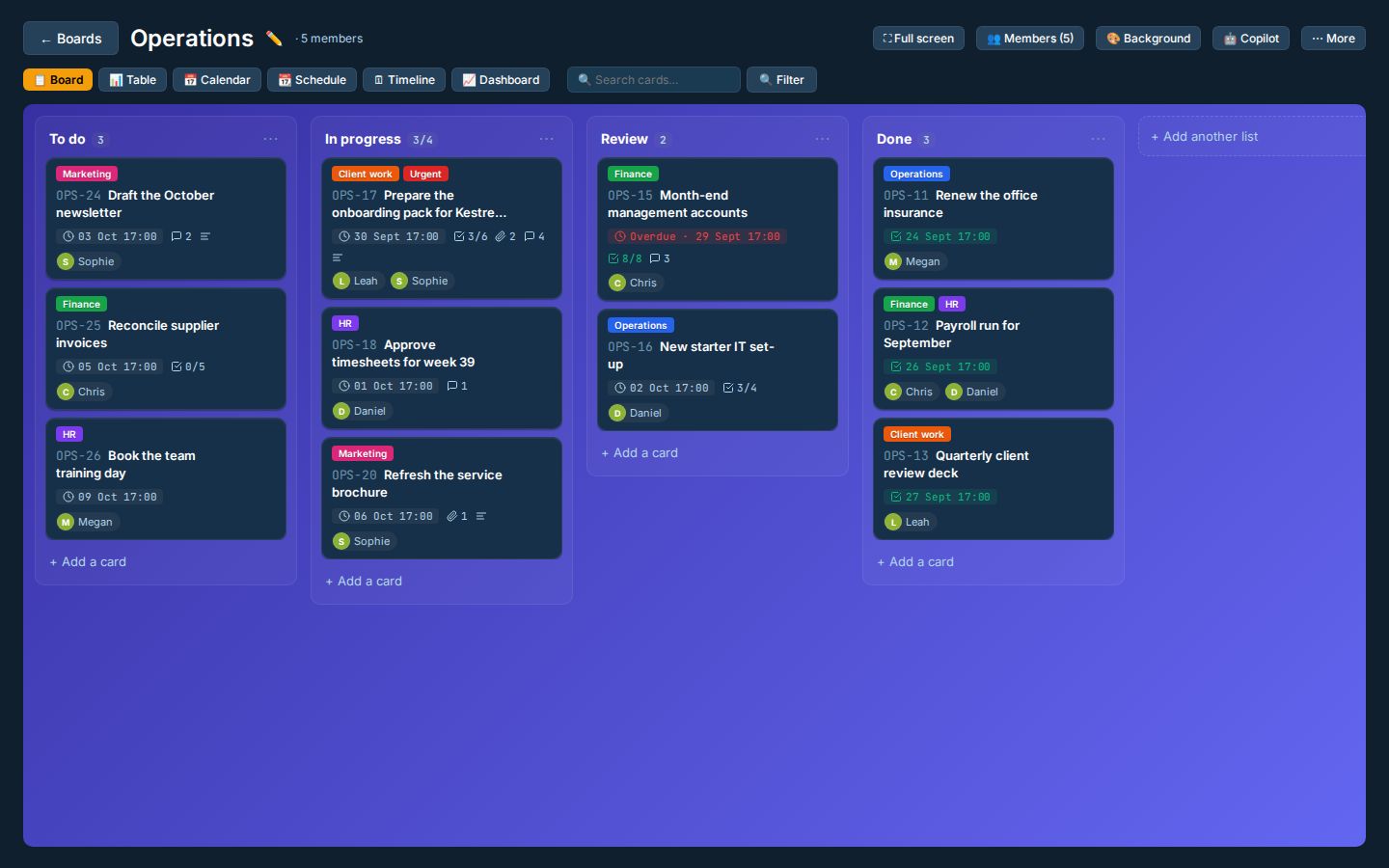
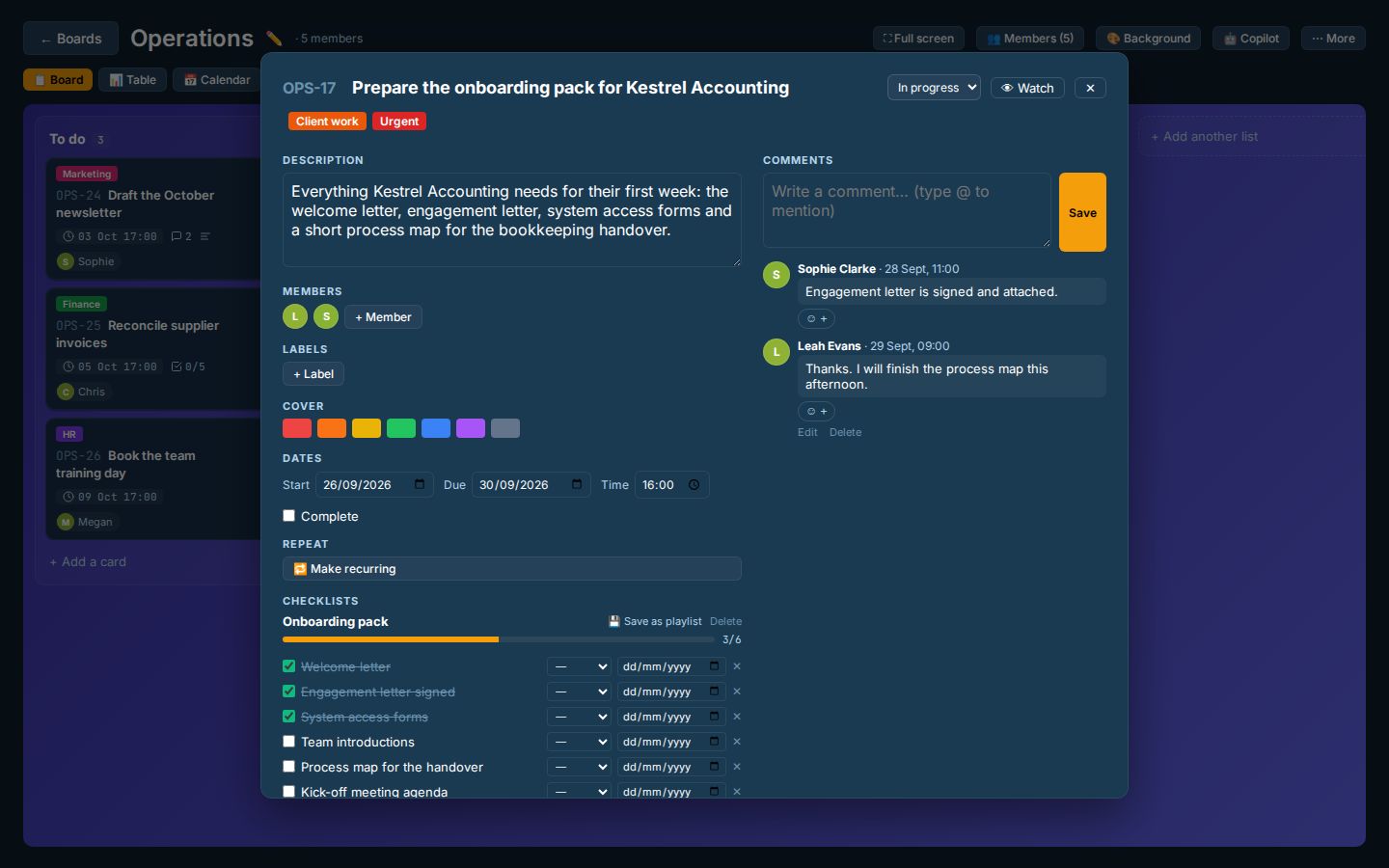
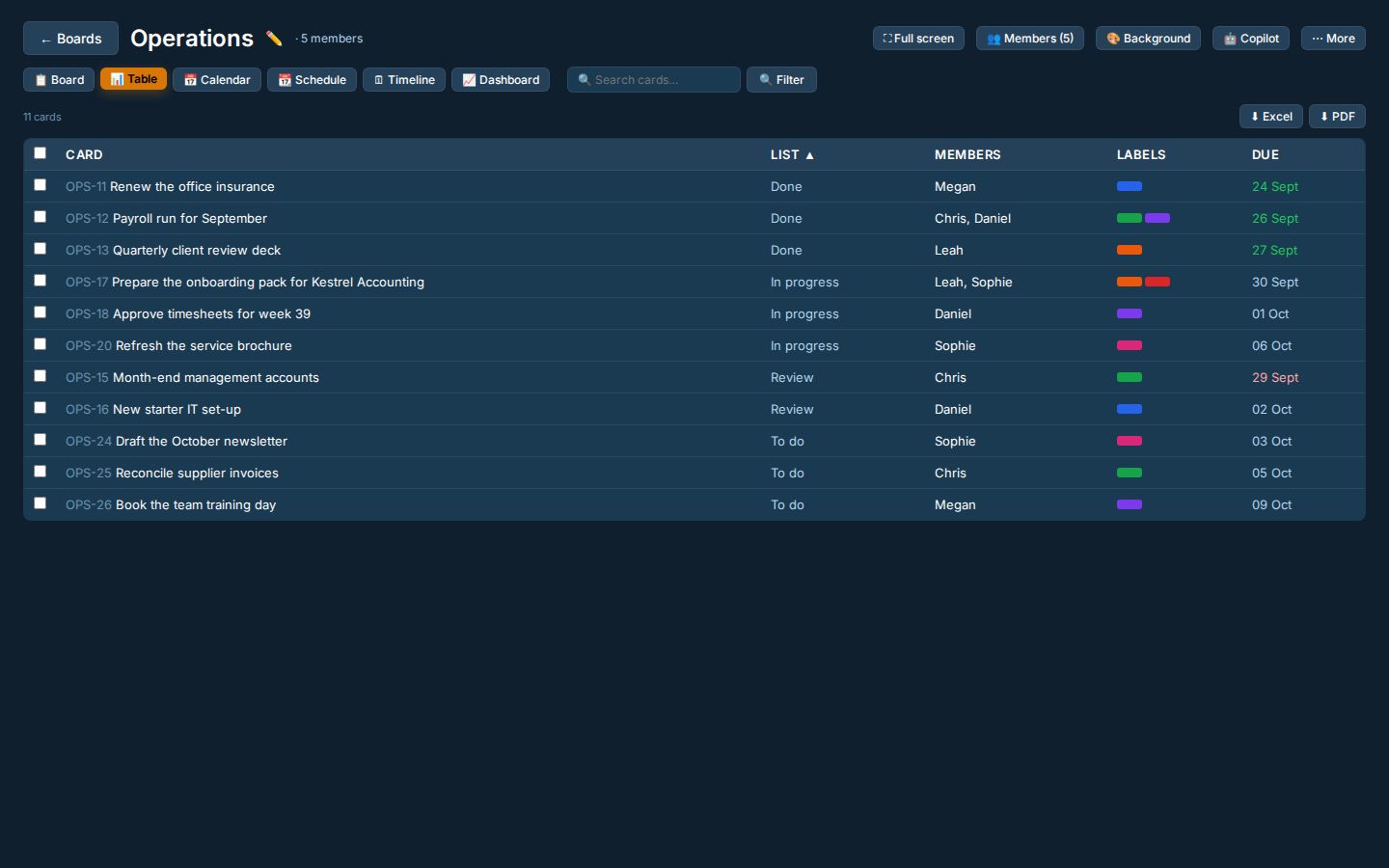
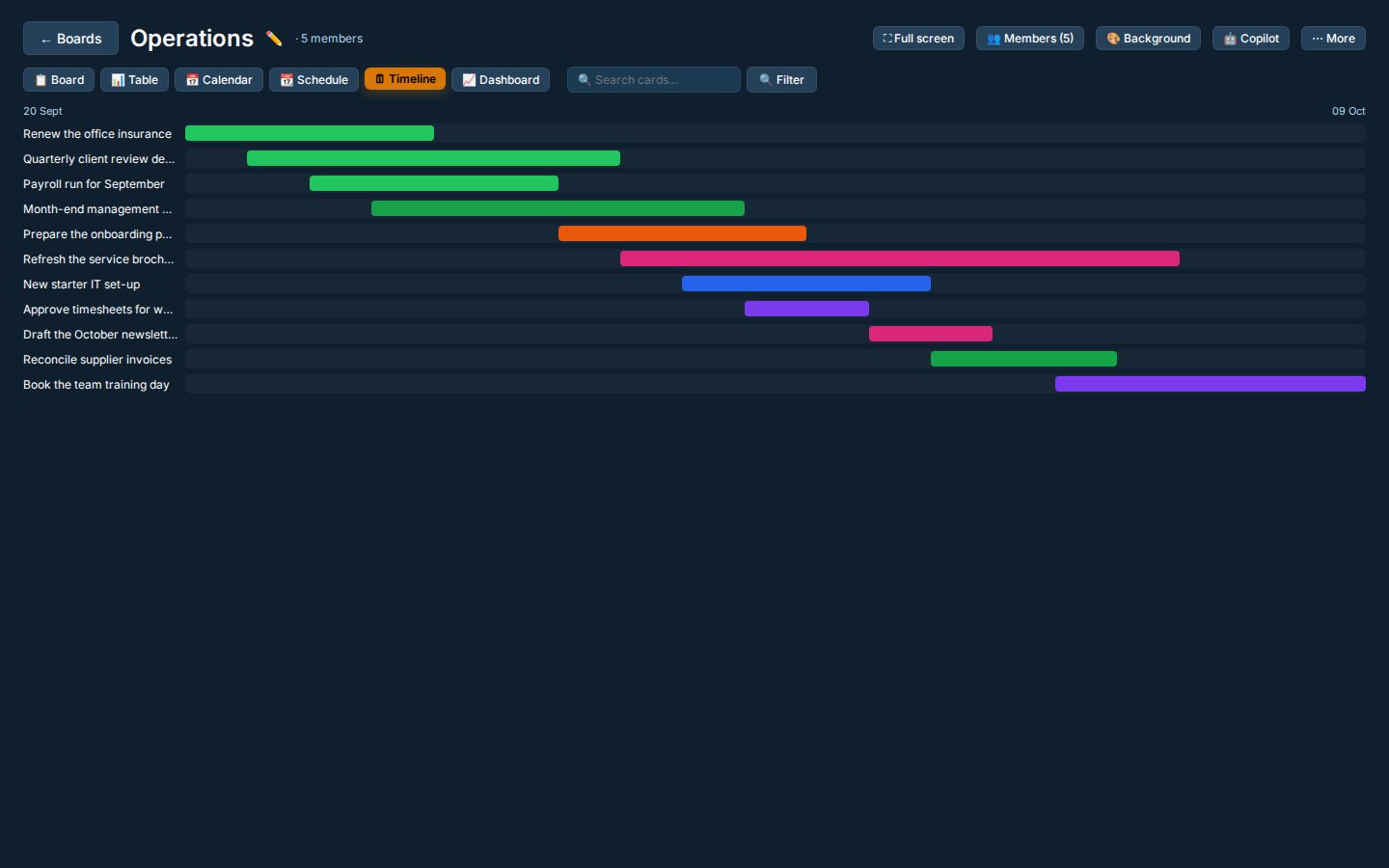
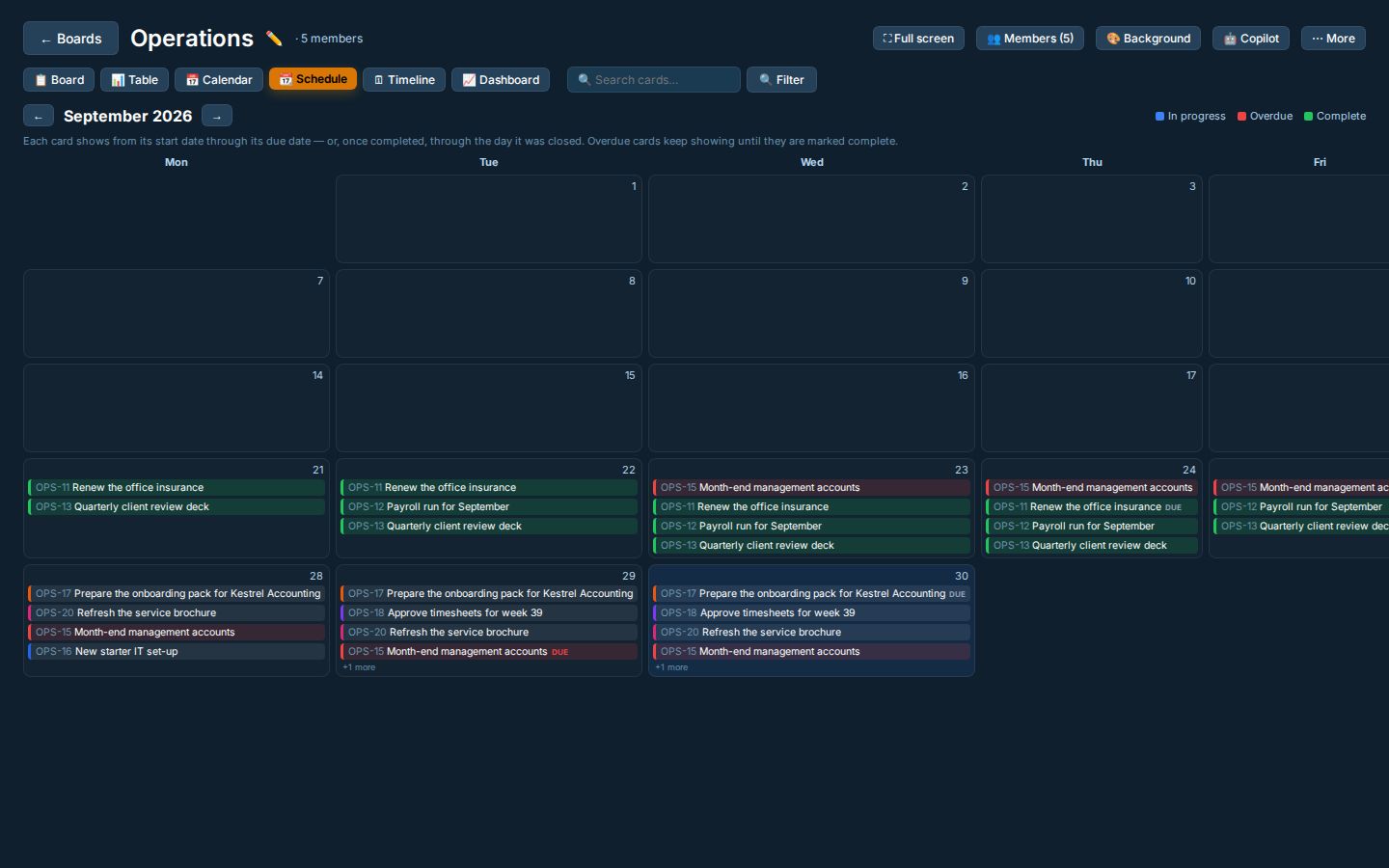
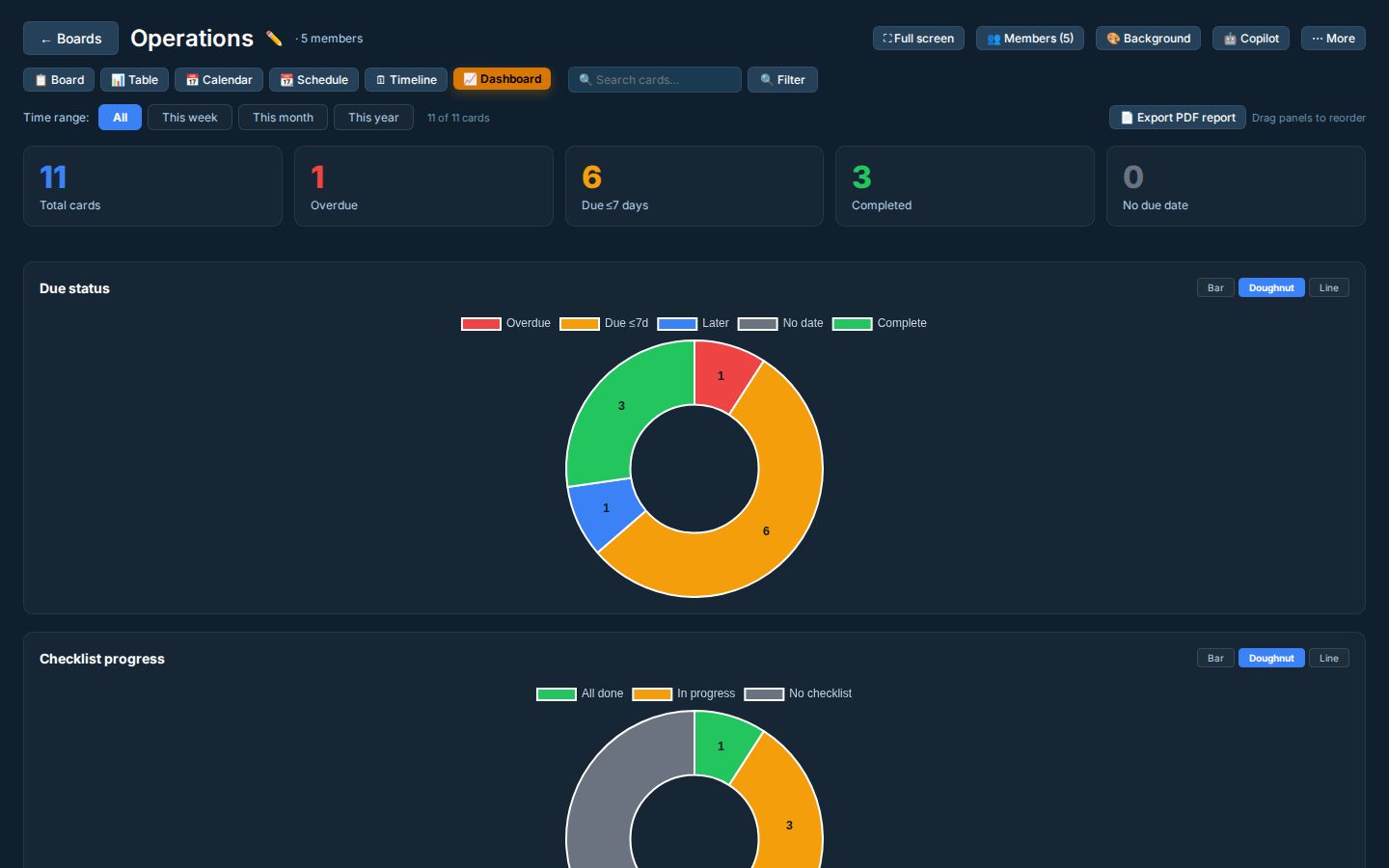
Real screens from Pulse Boards, shown with an example operations board. Switch between views without leaving the board.
Everything on the card, nothing lost
My Work panel
Overdue and due-soon cards at the top the moment you open Pulse. Tick one complete without opening it.
Cards that hold the context
Checklists, due dates, labels, custom fields, attachments and the whole conversation live on the card.
References that never change
Give a board a short code and every card gets a fixed reference, such as OPS-12, that stays the same even if the card moves board.
Mentions and completion alerts
Get @mentioned, assigned or watch a card, and the whole board is told when a card moves to Done.
Charts from your own fields
Turn any dropdown field, such as task type or priority, into a live chart by list or by assignee.
One-click reports and exports
A PDF of the board dashboard with the sections you choose, or the full board table as an Excel file or a print-ready PDF.
Calendar with people
See due dates on a calendar, with each card's owners shown by photo and name.
Time tracking built in
Tap the timer or log hours on a card; they write straight to your timesheet and the card history.
Workspaces and permissions
Private workspaces for leadership, shared ones for teams, and admins who can manage membership on any board.
Copilot, with approval
A built-in assistant can tidy or update the board for you, but only after you approve the changes.
Import from Trello
Bring boards across in one step with lists, cards, members and attachments, then jump to any card with Ctrl+K.
Always up to date
New releases install themselves in the background, with no blank screens and no manual refreshes.
Pulse Boards in detail
What every board includes as standard. Tailored builds can add what is missing.
Views
- Board
- Kanban lists; drag cards between stages, on desktop or touch screens
- Table
- Sortable list with bulk assign, move, label and archive
- Calendar and schedule
- Cards on their due dates, or spanning start to due
- Timeline
- Gantt-style bar for every card from start date to due date
- Dashboard
- Total, overdue, due soon and completed, plus charts by list, label and person
Cards
- On the card face
- Labels, card number, due badge, checklist progress, files, comments and owners
- Dates
- Start and due dates with an optional time; red when overdue, green when done
- Checklists
- Items with their own owner and due date; save them as reusable playlists
- Custom fields
- Text, number, date, dropdown or checkbox, and sort lists by them
- Files
- Attachments up to 25 MB each, viewed in the browser; colour covers
Lists and flow
- WIP limits
- Cap the cards in a list; the count turns red when the list is over
- Bottleneck flag
- Flags the slow column when its cards average 7 days or more
- Urgent
- Adding the Urgent label moves a card to the top of its list
- Recurring cards
- A fresh copy every set number of days, weeks or months
Collaboration
- Live updates
- Changes appear for everyone within a second, with nothing to refresh
- Mentions and watchers
- Type @ to tag someone; watchers hear about every change
- Reminders
- Overdue reminders by notification and email to owners and watchers
- My Work panel
- Your overdue cards and those due within 7 days, first thing
Automation
- Rules
- When a card moves, is created, gets a label or passes its due date, do something
- Actions
- Label, assign, move, add a checklist, shift the due date, complete or comment
- Presets
- Complete on Done, QA checklist on Review, triage new cards and more
- Daily tidy-up
- Archives Done cards untouched for 14 days; gives unowned cards to the least busy member after 24 hours
Copilot assistant
- Plain English
- Ask a question, summarise a board or request changes in your own words
- Approve first
- Shows a plan of changes; nothing happens until you click Apply
- Your permissions
- Changes run as if you made them, never beyond your own access
- Limits
- Up to 25 cards per request, on the board you have open
Time tracking
- Log time
- Date, start, optional end and a note, from any card
- Work timer
- One tap on a card; a timer chip follows you around the app
- One entry, three places
- The timesheet, a comment on the card and the card's time history
- Per card
- Total time, a per-person breakdown and every entry
Access and security
- Private boards
- Visible only to invited members
- Board roles
- Admin, Member, Commenter and Viewer
- Oversight
- Application administrators can see every board
- Archive and undo
- Undo for cards; restore archived lists and cards
- Navigation
- Whole-board search, saved filtered views and Ctrl+K to jump to your cards on any board
How work moves through a board
- 1
Set up
Create a board, invite members and add a list for each stage, left to right.
- 2
Add cards
One card for each piece of work, with its owner, labels, dates and checklist.
- 3
Move and log
Drag cards across as the work progresses and log time against each one.
- 4
Automate
Rules and the daily tidy-up keep the board current without anyone chasing.
- 5
Review
Tick cards complete, then review the Dashboard or send the PDF report.
No double entry, ever
Time logged on a card writes straight to the person's timesheet and to the card's own history. Managers see hours by person, board and client without asking anyone to fill in a spreadsheet.
See Pulse TimesheetsRunning day to day at DDRT
DDRT moved its teams off Trello and onto Pulse Boards, with time tracking on every card, one-click reports and exports, and its own UK-hosted instance.
Good to know
Is Pulse Boards hosted, or installed on our systems?
Pulse runs as a hosted web application with desktop and mobile app installs, operated by Task Tango under our ISO 27001 controls. Private deployment is available on request.
Can we migrate our existing Trello boards?
Yes. Boards import in one step, with lists, cards, members and attachments, and your team can keep the same column names they are used to.
Can our data stay in the UK?
Yes. Pulse can run on a dedicated instance hosted in London, so your boards and files stay in the UK.
How is pricing calculated?
By product and by the level of customisation you need. We quote after a 15-minute demo on one of your own jobs, so the price reflects your setup, not a generic list.
Can Task Tango's team work inside our boards?
Yes. Add your Task Tango team as members and delegate cards to them; their time and progress show on the same board.
See Pulse Boards with your own work on it
Bring a board, a project or a Trello export to a 15-minute demo and we will set it up live.